Securing your boot device
The boot device is essential to your Unraid server, as it stores all configuration data, licensing, and system settings. Due to its importance, it is crucial to keep its contents secure and accessible at all times.
In Unraid 7.3.0 and later, the WebGUI uses Boot device on the Main tab (for example Boot Device settings and backups). On earlier releases, the same controls are labeled Flash or Flash device. Use whichever label your version shows.
备份
Having a recent backup of your boot device ensures you can quickly recover from hardware failures, accidental changes, or data corruption. Be sure to create backups in the following situations:
- 在升级 Unraid 或安装插件之前
- 添加或移除驱动器后
- 更改网络、共享或安全设置后
- 进行重大配置更改之前
- 定期作为日常维护的一部分
To back up your boot device using the Unraid WebGUI, follow these steps:
- Select your boot device from the Main tab.
- In the Boot Device tab, click Boot Device Backup.
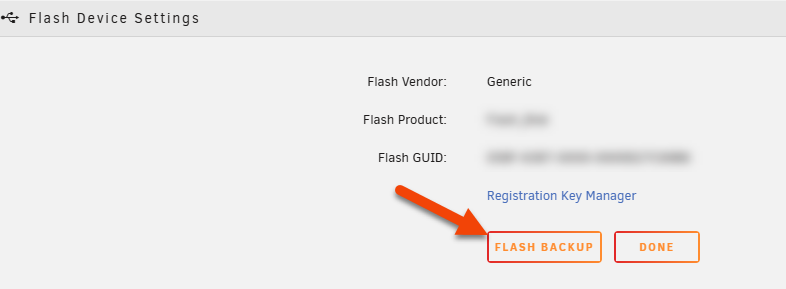
- Unraid will create a ZIP file containing the boot device's contents.
- Save this ZIP file to a secure location outside your Unraid server (like a separate PC, NAS, or cloud storage).
如果您需要重新创建启动设备,请通过 Use custom 选项将此备份与 USB Creator 工具 一起使用。
在进行任何硬件更改后,建议保留 磁盘分配 的屏幕截图。这确保了在需要从备份恢复时可以正确放置驱动器。
网络访问
You can control whether your boot device is accessible over the network, similar to other shares in Unraid. However, network access should be restricted since the boot device contains sensitive configuration and licensing data. Consider the following:
- Network visibility: Decide if your boot device should be visible or hidden on your network.
- 访问权限: 如果启用了网络访问,请设置权限以限制谁可以查看或修改其内容。
- Disable sharing: Set the boot device's SMB export to No to prevent network access entirely.
- Restrict access: If you must share the boot device, set security to Private and grant access only to trusted users with strong passwords.
- Avoid public access: Never leave the
flashshare set to Public or Secure with guest write access.
这些步骤有助于防止未经授权的更改或关键文件的暴露。
权限
To enhance system security, files on the boot device can no longer be given execute permission. This change prevents malicious or unintended code from running directly off the boot device, reducing the risk of exploitation or accidental system modification.
If you have custom scripts or programs stored on the boot device, follow these steps:
-
复制脚本到可执行位置:
- 如果您希望脚本位于默认系统路径,请使用
/usr/local/bin。 - 通过向
config/go文件添加复制命令来自动化这一过程。 - 复制后,为文件设置执行权限。
- 如果您希望脚本位于默认系统路径,请使用
-
用解释器运行脚本:
- 为脚本添加解释器前缀(例如,
bash /boot/config/scripts/myscript.sh)。
- 为脚本添加解释器前缀(例如,
这种方法可以让系统保持安全,同时允许高级用户运行他们的脚本。